
How to add analytics to a Manifest V3 extension (and why Google Analytics breaks)
gtag.js cannot run in a Manifest V3 extension, and the Measurement Protocol leaves you to build the client yourself. What breaks, what the workaround costs, and a setup that survives the service worker.
Updated November 20, 2026 · 7 min read · Markdown version
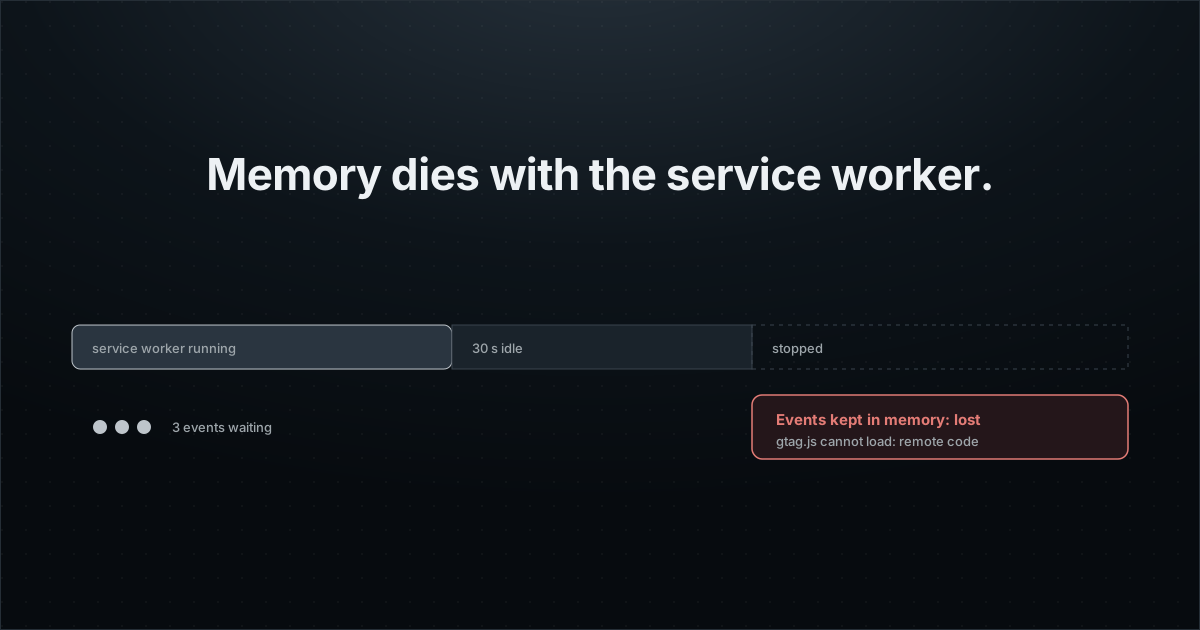
You added Google Analytics to your extension, shipped it, and the reports stayed empty. Or they show a few hundred users when the store says you have thousands. Nothing is wrong with your code. Manifest V3 changed where extension code runs, and web analytics was built for web pages.
This guide explains what breaks and why, shows the Measurement Protocol workaround with its real limits, and ends with a setup that keeps working when the service worker stops.
What breaks, and why
Google Analytics 4 is designed for a web page: a script tag loads gtag.js from Google, cookies hold a client id, and the page stays open long enough to send what it collected. An MV3 extension has none of that.
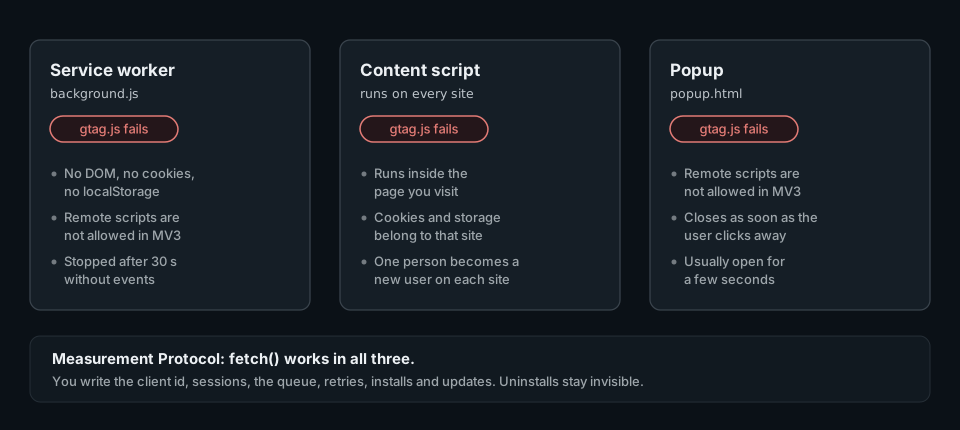
Remote code is not allowed. Since Manifest V3, extensions must bundle all the code they run. Chrome's own GA4 tutorial says it plainly: extensions are not allowed to execute remotely hosted code. The usual GA4 snippet is exactly that, a script fetched from Google at run time.
The service worker is not a page. It has no DOM, no document.cookie and no localStorage. Chrome stops it after 30 seconds without events or extension API calls, and its global variables are gone when it does. Any library that batches events in memory and flushes them on a timer loses the batch.
Content scripts run inside someone else's site. In a content script, localStorage and document.cookie are those of the page you are injected into. A web-analytics client id stored there changes with every site, so one person becomes hundreds of users.
There is no extension lifecycle in GA4. It knows pages, sessions and events. It has no built-in notion of an install, an update, the version running on each browser, or an uninstall. You can send install and update events yourself. You cannot send an uninstall: your code no longer runs when it happens.
The service worker lifecycle, in one picture
This is the failure most teams discover late, because it does not throw. The worker wakes for an event, your code records a few analytics events, the user moves on, and 30 seconds later Chrome stops the worker. The setInterval that was supposed to flush the batch never fires.
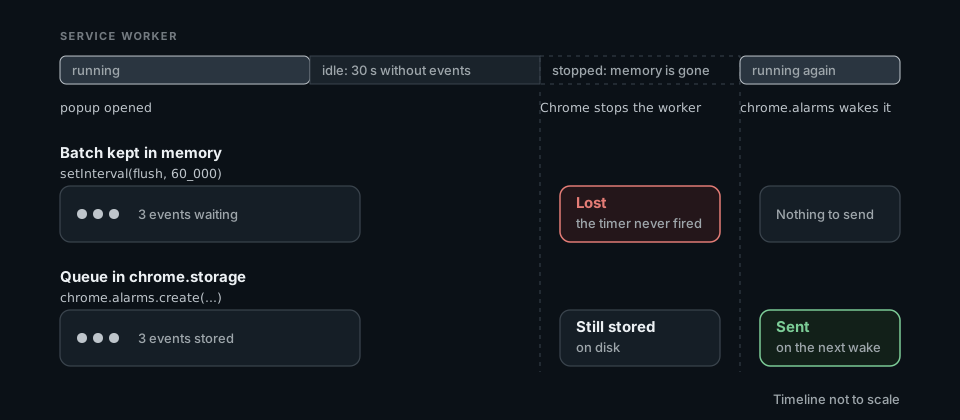
The fix is a pattern, not a library: write each event to chrome.storage.local before trying to send it, and use chrome.alarms (not setInterval) to retry. Chrome documents both as the way to keep state across worker restarts.
The Measurement Protocol workaround, and its limits
If you must stay on GA4, Chrome's tutorial uses the GA4 Measurement Protocol: plain fetch() calls to Google's collection endpoint, which work from the service worker, the popup and the side panel. A minimal version looks like this:
// background.ts: GA4 Measurement Protocol from the service worker
const GA_ENDPOINT = "https://www.google-analytics.com/mp/collect";
const MEASUREMENT_ID = "G-XXXXXXXXXX";
const API_SECRET = "..."; // ships inside the extension: anyone can read it

async function getClientId(): Promise<string> {
  const { clientId } = await chrome.storage.local.get("clientId");
  if (typeof clientId === "string") return clientId;
  const created = self.crypto.randomUUID();
  await chrome.storage.local.set({ clientId: created });
  return created;
}

// GA4 needs a session id for its reports; you maintain it yourself.
async function getSessionId(): Promise<string> {
  const now = Date.now();
  const { session } = await chrome.storage.session.get("session");
  if (session && now - session.lastSeen < 30 * 60_000) {
    await chrome.storage.session.set({ session: { ...session, lastSeen: now } });
    return session.id;
  }
  const id = String(now);
  await chrome.storage.session.set({ session: { id, lastSeen: now } });
  return id;
}

export async function sendGaEvent(name: string, params: Record<string, string | number> = {}) {
  await fetch(`${GA_ENDPOINT}?measurement_id=${MEASUREMENT_ID}&api_secret=${API_SECRET}`, {
    method: "POST",
    body: JSON.stringify({
      client_id: await getClientId(),
      events: [{ name, params: { session_id: await getSessionId(), engagement_time_msec: 100, ...params } }],
    }),
  });
}
It works. It is also where your work starts, because this code has no queue: if the request fails or the worker stops during it, the event is gone. Before relying on it, know what Google itself says about the protocol:
- It is meant to augment automatic collection, not replace it. Google warns that only partial reporting may be available when you send events this way alone.
- The API secret is shipped in the extension package. Google documents the protocol as primarily designed for server-side or trusted environments.
- Each request carries at most 25 events, each with at most 25 parameters, and the body must stay under 130 kB. Events can be backdated by 72 hours at most.
- Chrome's tutorial notes that some information, such as geolocation, is not included.
- You still write the queue, the retries, the install and update events, and the per-context plumbing. Uninstalls stay invisible.
What an extension SDK does instead
An SDK built for extensions starts from the constraints above instead of fighting them. Here is what the Extension Report SDK does, so you can compare it with what you would build yourself:
- Every event is written to extension storage first, then sent in batches. An alarm retries delivery with backoff, so a stopped worker or a flaky network delays events instead of losing them.
- One random installation id, kept in
chrome.storage. No cookies, no fingerprinting, the same id from every context. - Installs, updates, startups and a daily heartbeat are recorded automatically, which gives real active installations per day, week and month.
- Popup, options page and side panel sessions are measured from the background, so you do not start a second tracker in each page.
- Uninstalls are reported through the browser's uninstall URL, set and refreshed by the SDK.
- High-frequency actions can be counted locally with
sdk.count()and sent once a day, instead of one event each.
The integration is one initialization in the service worker:
npm install @extension-report/js@0.6.9// background.ts (the service worker entry)
import { initExtensionReport } from "@extension-report/js";
export const sdk = initExtensionReport({
projectPublicKey: "pk_er_...", // public key, safe to ship
instrumentation: { adoption: true, engagement: true, reliability: "errors" },
});{
"permissions": ["storage", "alarms"],
"host_permissions": ["https://extension.report/*"]
}Pages and content scripts do not start their own instance. A popup opens a session with one call, and a content script asks the background to record an event:
// popup.ts: the background SDK records the open and how long it stayed open
import { connectExtensionReportUiSession } from "@extension-report/js";
connectExtensionReportUiSession({ surface: "popup", entrypoint: "action_icon" });

// content-script.ts: ask the background to record a product event
chrome.runtime.sendMessage({ type: "analytics:event", name: "summary_copied" });

// background.ts: one listener, a closed list of names
const PRODUCT_EVENTS = new Set(["summary_copied"]);
chrome.runtime.onMessage.addListener((message, sender) => {
  if (sender.id !== chrome.runtime.id || message?.type !== "analytics:event") return;
  if (!PRODUCT_EVENTS.has(message.name)) return;
  void sdk.trackCustomEvent(message.name, message.attributes ?? {});
});
Pitfalls to avoid, whatever tool you choose
- Initializing a tracker in every context. Each popup open or visited page then creates a new client. Keep one instance in the background and message it.
- Flushing on
setInterval. It dies with the worker. Usechrome.alarms, which survives. - Registering listeners after an
await. Chrome asks for event listeners at the top level of the service worker, registered synchronously, so the event that woke the worker reaches them. - Sending page URLs or page text. A content script sees the user's browsing. Send the name of the action, not the page it happened on.
- Ignoring consent on Firefox. New Firefox extensions declare technical and interaction data as an optional permission, which the user can refuse. Send nothing until it is granted. The Extension Report SDK checks it for you.
Do it with your AI agent
Let your agent set it up while you read the next guide.
Paste the request below into Claude Code, Codex or Cursor. Your agent connects to Extension Report through MCP, creates your account and the project, installs the SDK in your code and checks that events arrive. You sign in once and approve access. Extension Report never sees your code: the agent edits it on your machine.
1. Connect https://mcp.extension.report
claude mcp add --transport http extension-report https://mcp.extension.report
codex mcp add extension-report --url https://mcp.extension.report
2. Ask your agent
Add Extension Report analytics to this browser extension. Follow https://extension.report/docs/agents.txt.
The full playbook your agent follows: /docs/agents.
Prefer to do it yourself?
Free plan: 1 extension, 1,000 monthly active users, 30-day history.
Sources
- Chrome for Developers: Use Google Analytics 4 in an extension
- Chrome for Developers: Improve extension security (remotely hosted code)
- Chrome for Developers: The extension service worker lifecycle
- Chrome for Developers: Handle events with service workers
- Google Analytics: Measurement Protocol overview
- Google Analytics: Send Measurement Protocol events (limits)
- Firefox Extension Workshop: built-in data collection consent